To configure a platform, go to the Platforms tab and click the Add Platform button in the upper right corner.
Next, choose the platform type you want to configure: Telegram Bot or Telegram Mini App.
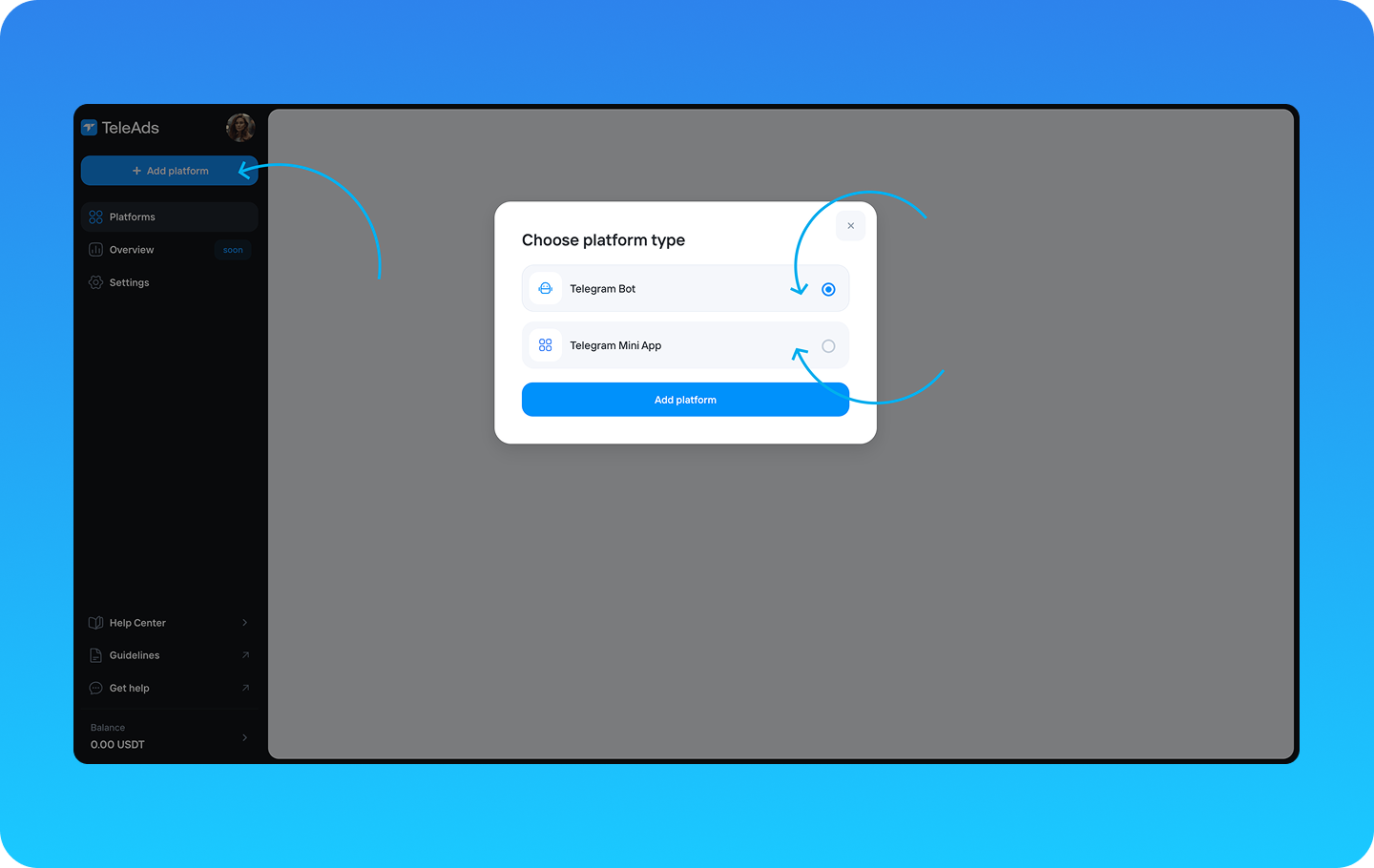
Depending on the selected type, you will be presented with the next configuration options.
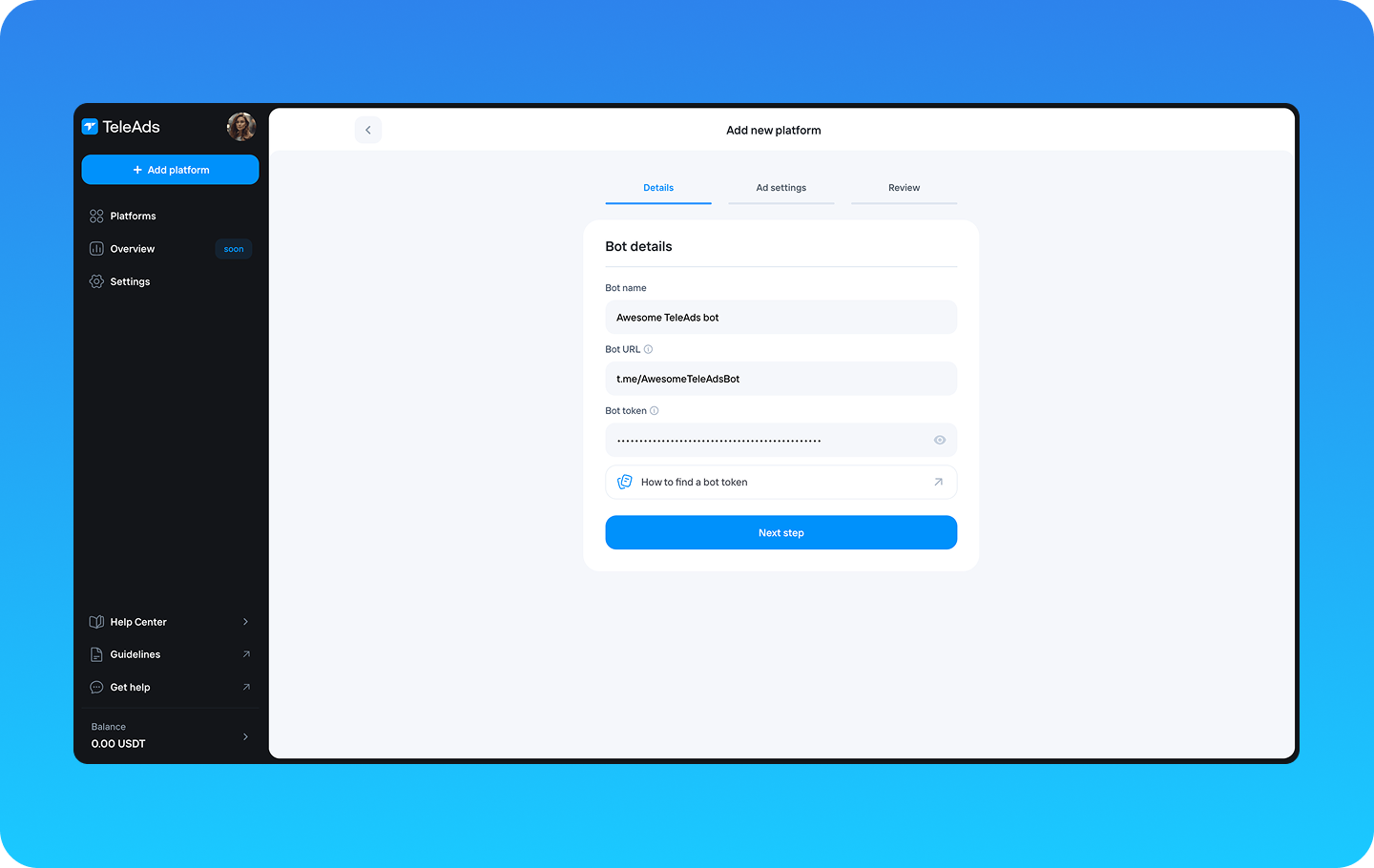
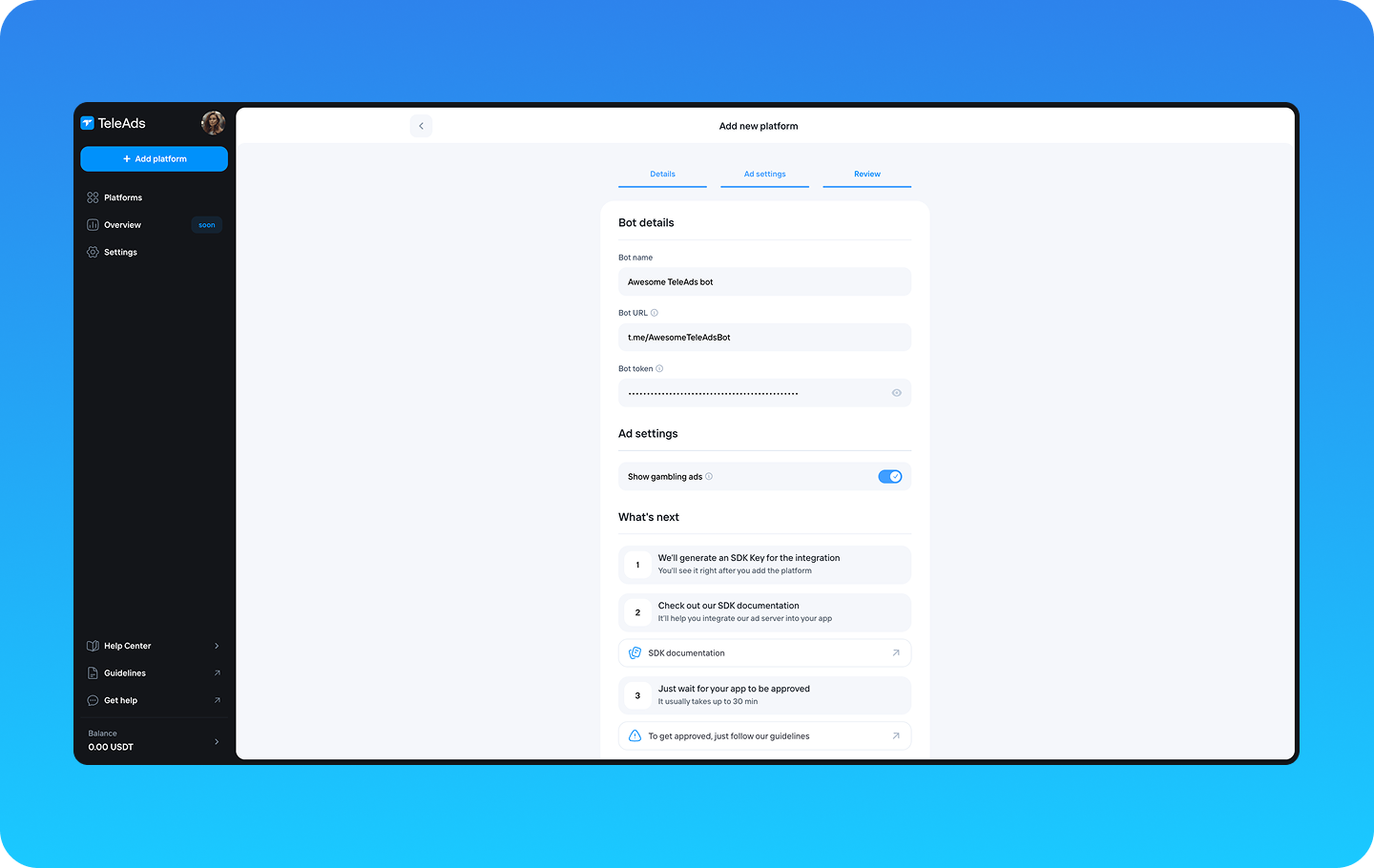
Enter the Bot details, such as:
Bot name: The name of your bot
Bot URL: The URL of your bot, starting with t.me/
Bot token: The token of your bot that looks like 123456:ABC-DEF1234ghIkl-zyx57W2v1u123ew11
Not sure how to find your bot token? Check out this guide for assistance.
Click on the Next step button.
Select if you would like to show the gambling ads in your app. Note that disabling this option might significantly reduce your income.
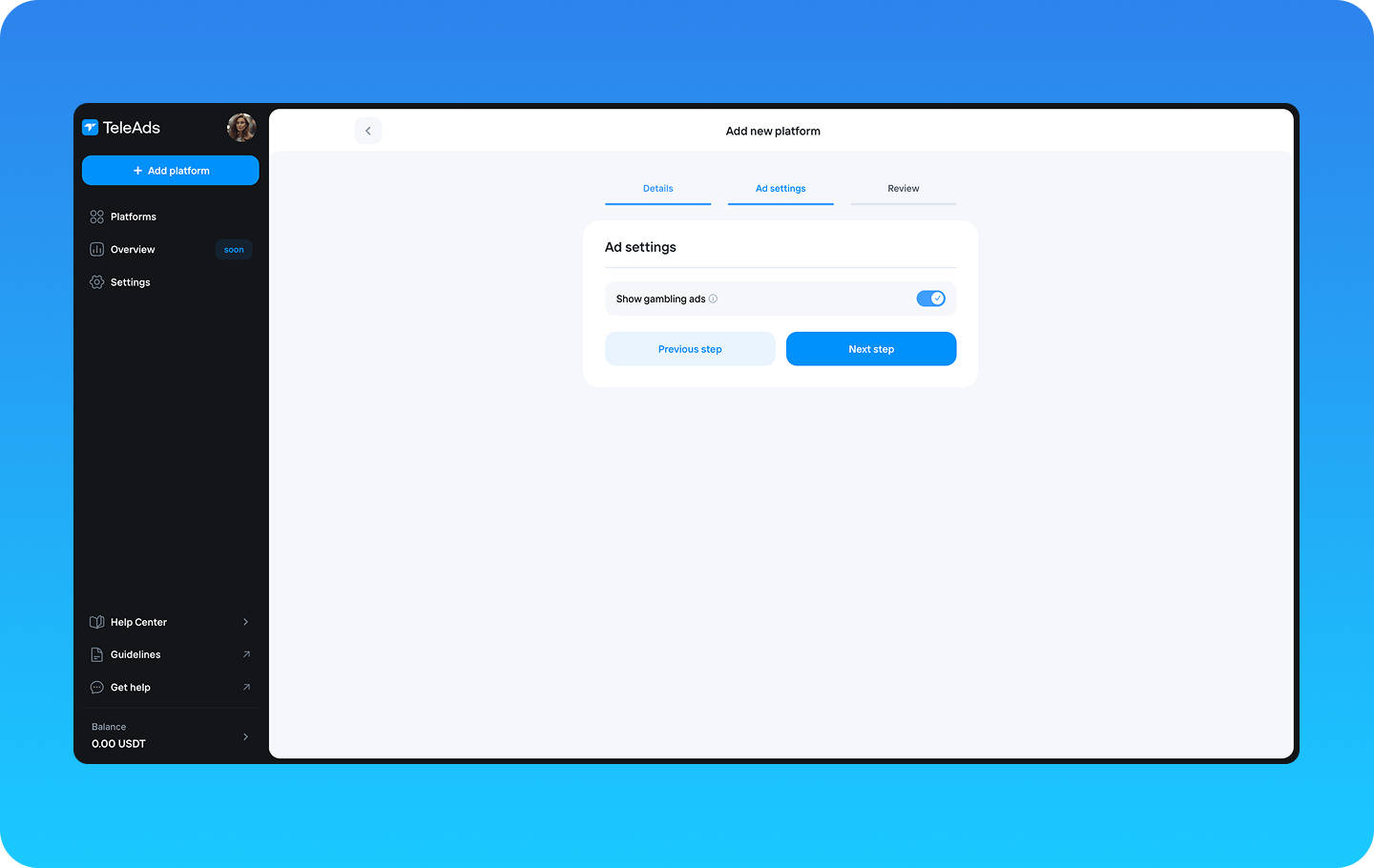
Click on the Next step button, or return to the previous step if you need to edit the Bot details.
This is the final step of the platform configuration. Once you double-check your bot’s details and settings, click the Add Platform button.
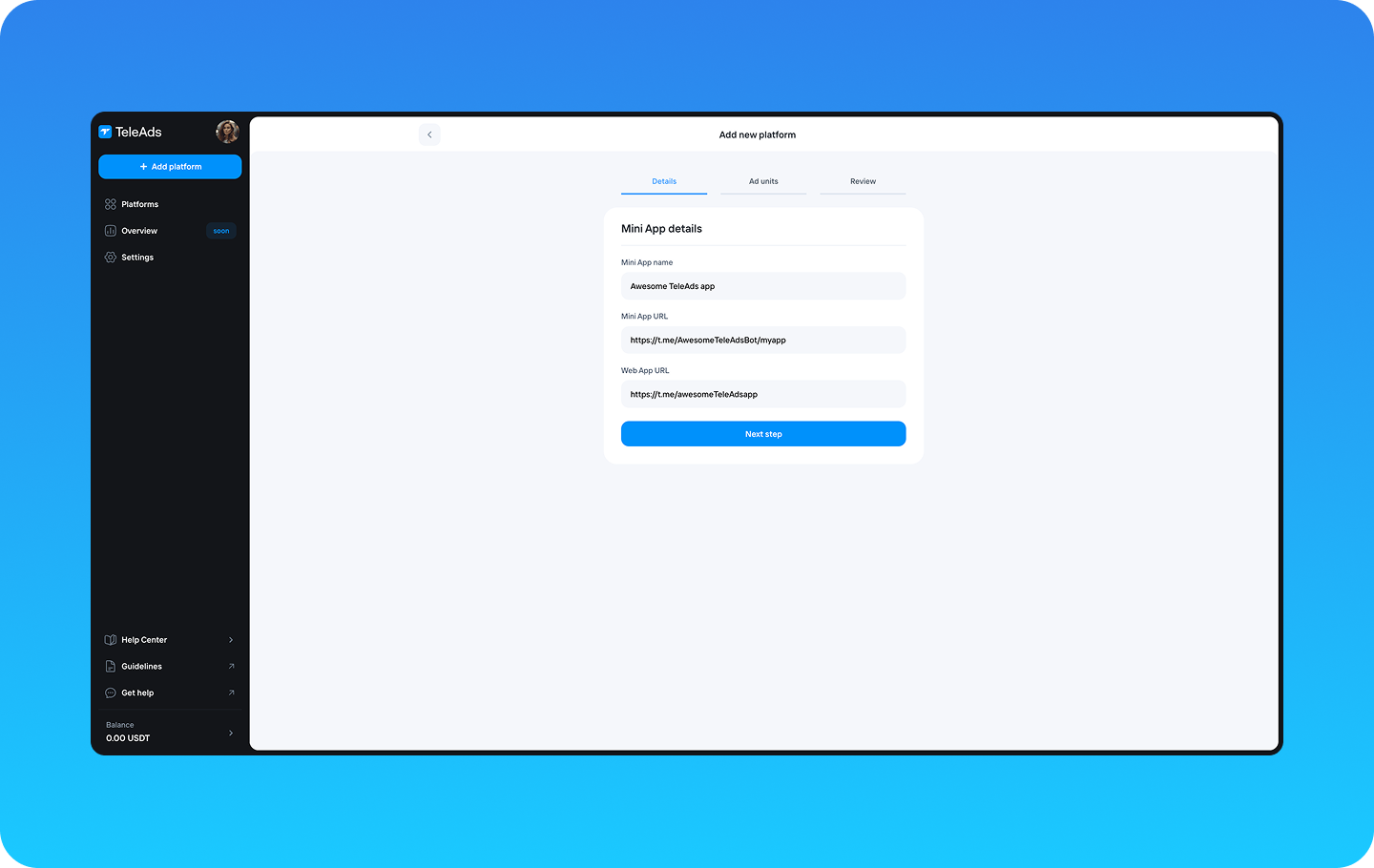
Enter the Mini App details, such as:
Mini App name: The name of your app
Mini App URL: The URL of your app, starting with https://t.me/
Web App URL: The URL of your app that will be opened when users follow a web app direct link
Click on the Next step button.
To monetize your app, create ad units that will serve as placeholders for displaying ads from the TeleAds server.
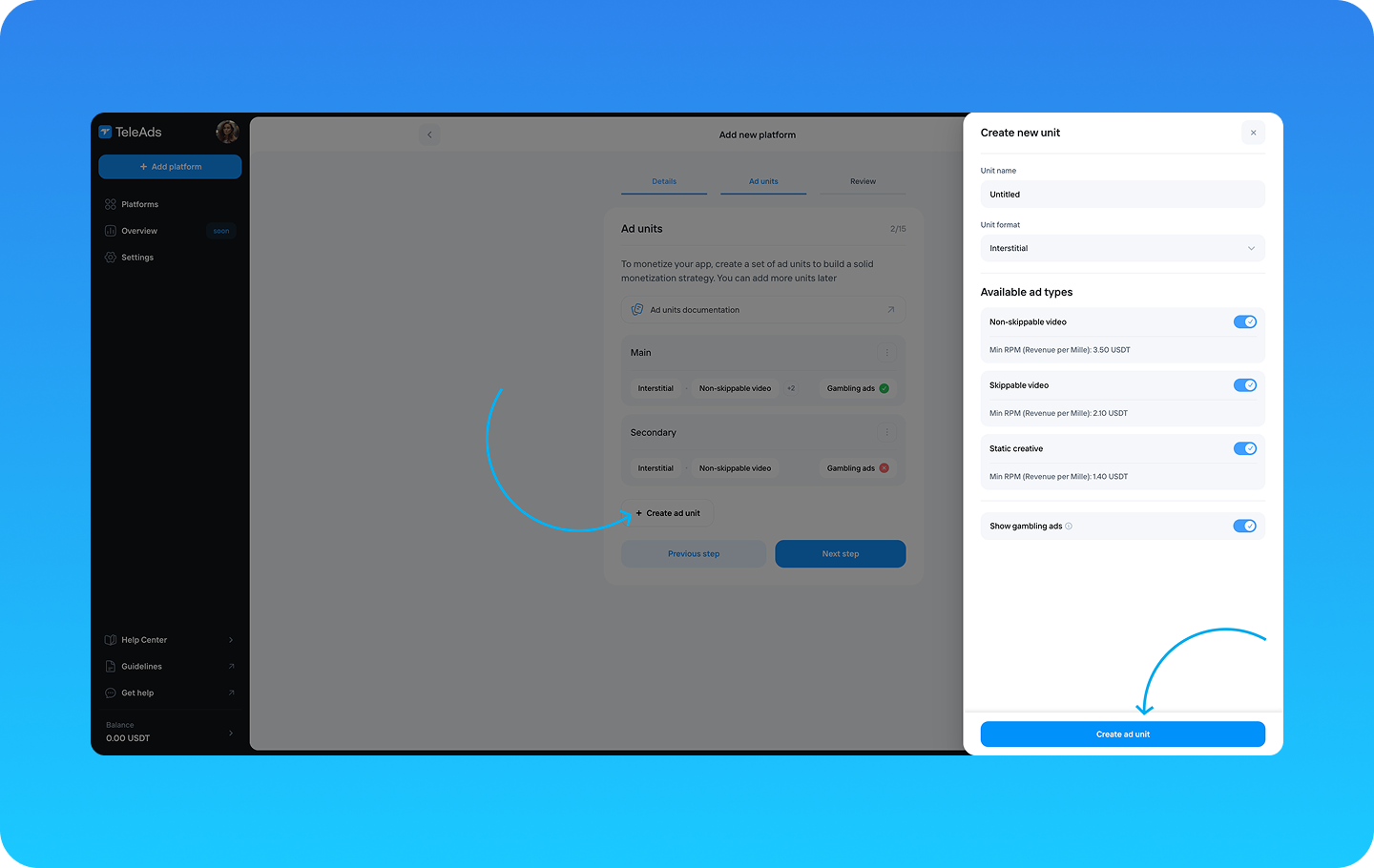
Click the Create Ad Unit button.
Enter the Unit Name and select its format.
Choose from the available ad types: Non-skippable Video, Skippable Video, or Static Creative.
Enable or disable the Show Gambling Ads toggle.
Click the Create ad unit button to save the unit.
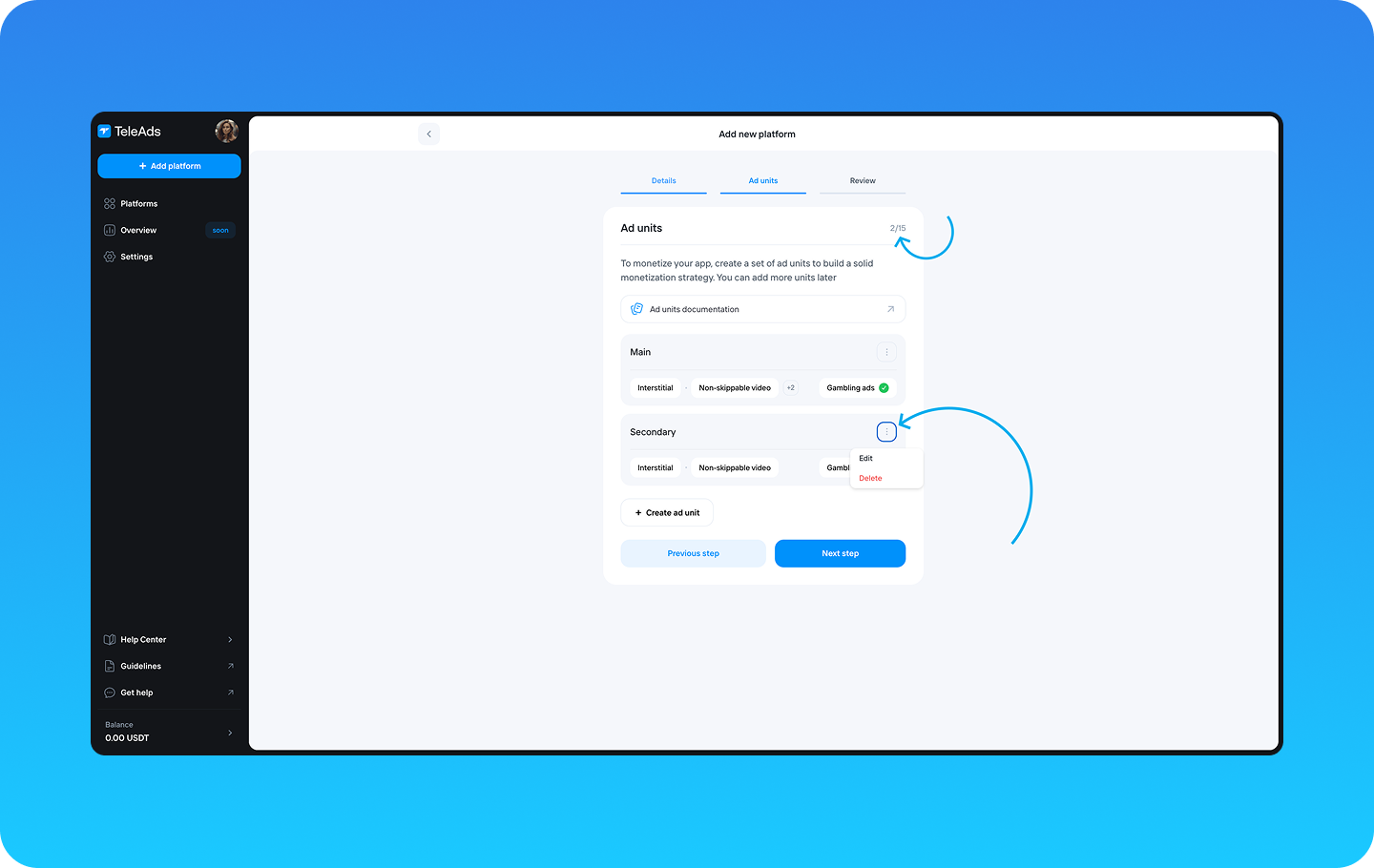
Create additional ad units as needed by following the steps above. You can create up to 15 ad units per platform and edit or delete a unit by clicking the ellipsis button next to it.
You can find more information about ad units formats and ad types supported at TeleAds here.
Click on the Next step button, or return to the previous step if you need to edit the Mini app details.
This is the final step of the platform configuration. Once you double-check your app’s details and settings, click the Add Platform button.
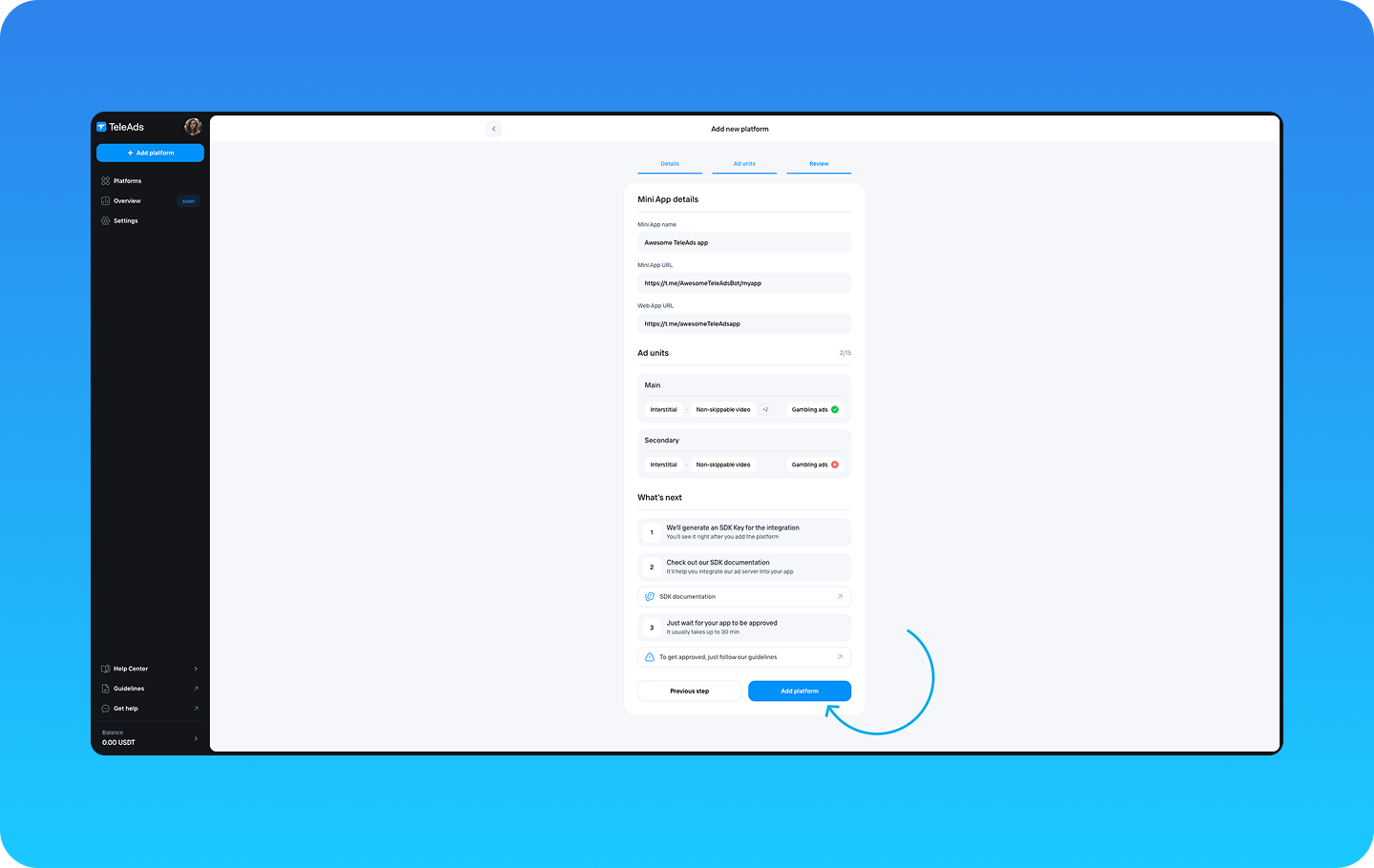
After adding the bot or mini app, here’s what happens next:
An SDK key will be automatically generated for you. You can copy it from the Platform Settings tab and use it to integrate our ad server inside your app.
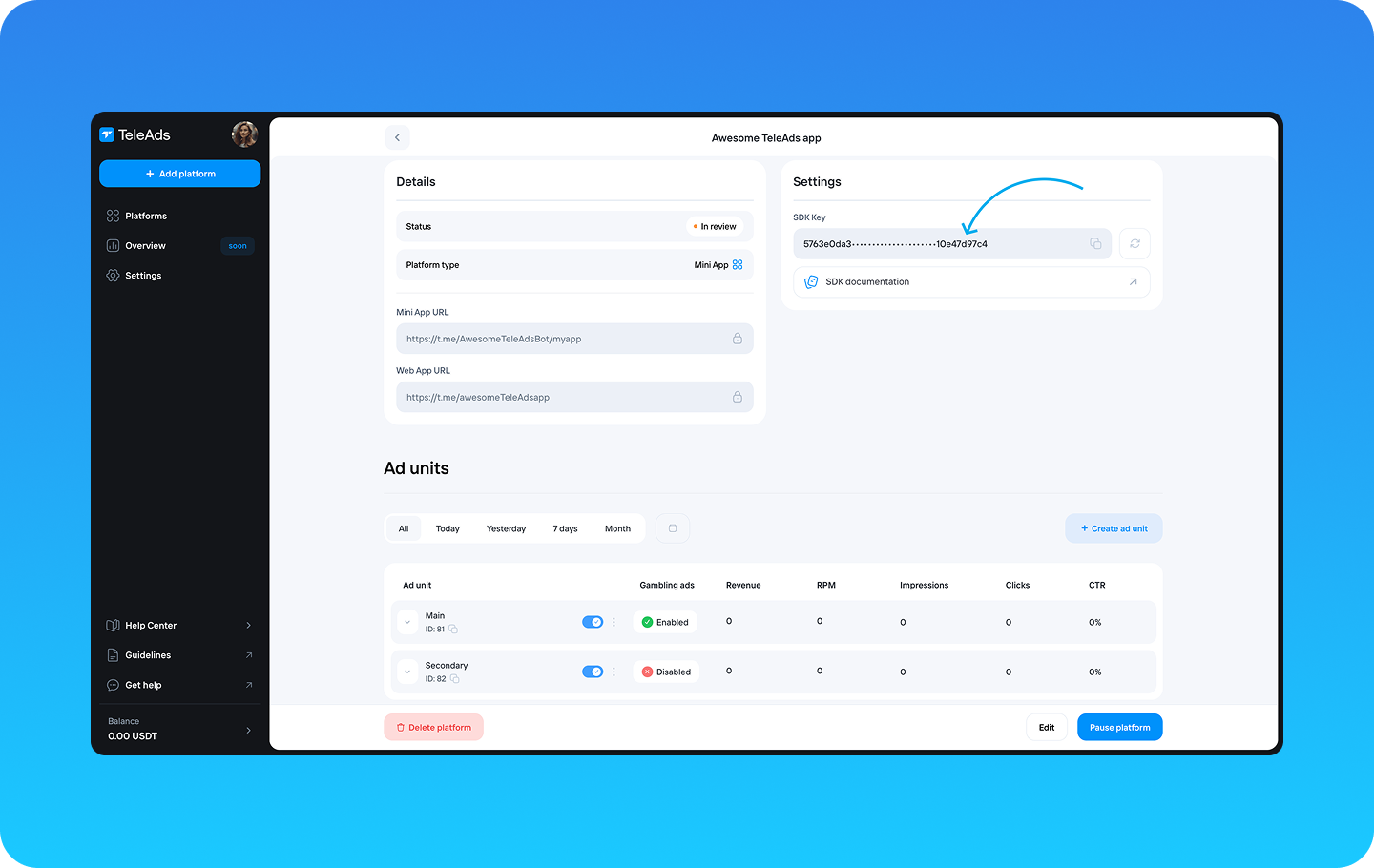

Your app will be submitted for moderation and approval. Our team typically reviews the app within 30 minutes, so you won’t have to wait long.
If your app is approved, its status will update in the Platform Settings. If it is declined, you will see the reason for the rejection.
You can pause or delete the platform at any time if you no longer need it.